How do I check in online?
Before departing on your P&O Cruises holiday, you’ll need to check in online. This guide will help you: it’s easy to do, and means you can avoid queues where possible at the port on embarkation day.
Online check-in
Last updated: 03/03/2026
Please note: This information is for checking in for your cruise only. If you’re on a fly-cruise holiday, you must check in for your flight separately. See our article ‘How do I check in for my flight?’ to learn more.
Before you get started
Please note: online check-in is available 21 days before departure.
To complete online check-in via My P&O Cruises, please make sure you have the following:
- Your booking reference
- Passport details
- A digital passport-style photo of each guest
- Payment card
Step one: Log in
Log in to My P&O Cruises using your name, date of birth and booking reference. Your booking reference is given to you at the time of booking as part of your booking confirmation. For more information, please see our article ‘Where is my P&O Cruises booking confirmation?’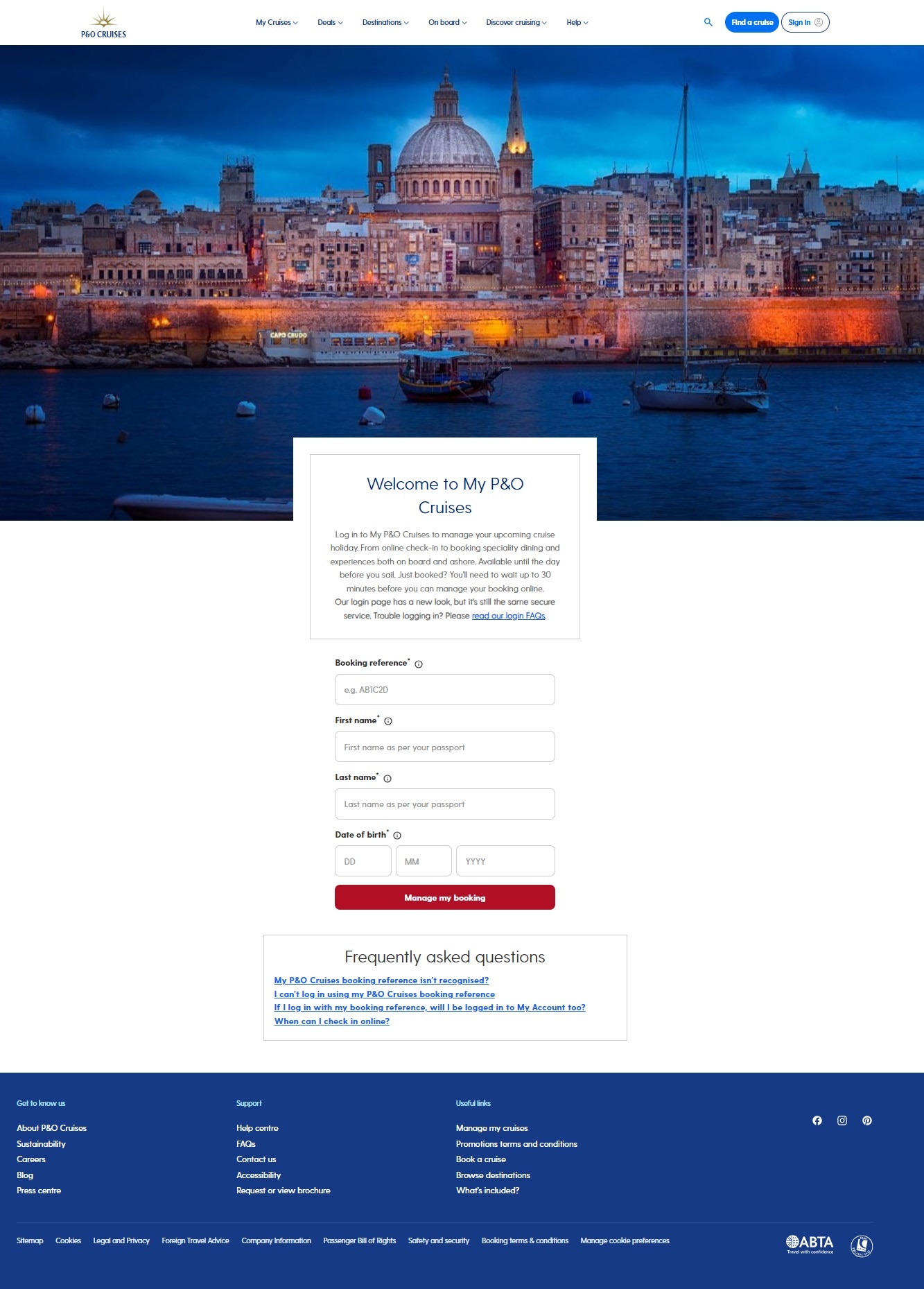
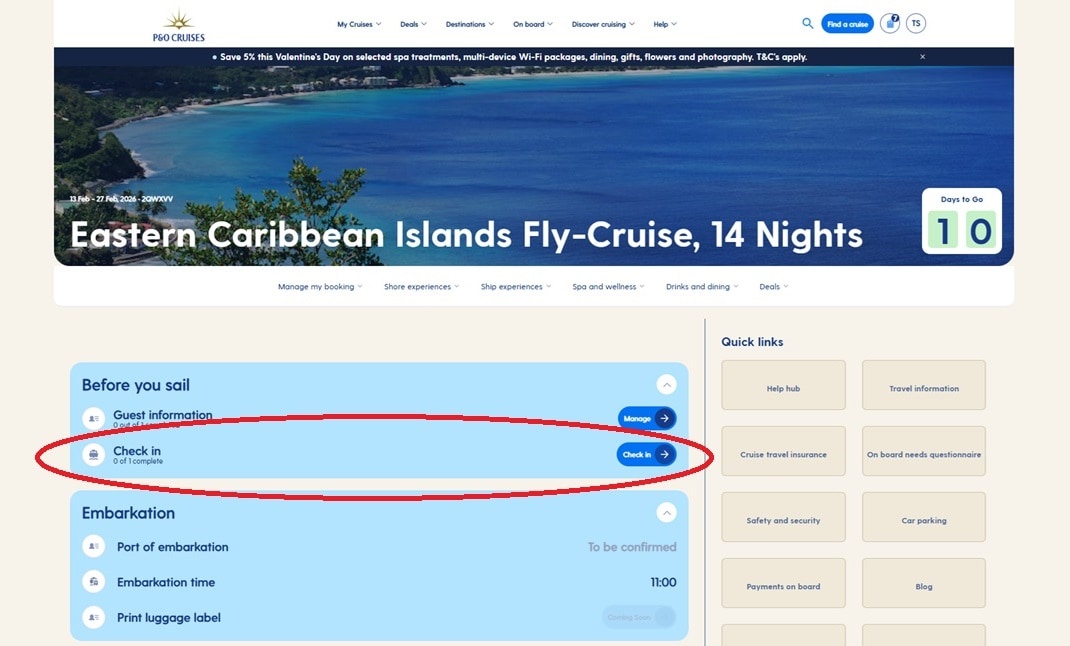
Once you’re logged in, scroll until you see the 'Before you sail' tile. Click the darker blue ‘Check in’ link. You’ll be taken to the online check-in page.
Please note: online check in will become available 21 days before your embarkation date.
Step two: enter passport details
On the online check-in page, you’ll see a list of actions to complete with a red alert icon to the left of each outstanding action.
.png)
Click on ‘Travel documentation’. The names of each guest in your cabin will appear on the screen. Underneath each guest's name, it will say ‘Incomplete' if you haven't yet entered your passport details.
To add or amend your details, click ‘Update’. You’ll then be taken to a form to enter your passport details.

Once you’ve entered your details, click ‘Save’. This will take you back to the check-in page, where you’ll see that your passport details have now been saved.
You can also add additional guests' passport details here. Select ‘Update’ next to another guest in the booking.
.png)
Please note: an accompanying adult must complete online check-in for minors (guests aged under 18 years) on the booking. You can add the passport details of children by selecting ‘Update’ next to their name on the screen.
Step three: add a payment card
On the online check-in page, click 'Payment details' in the left-hand list of tasks to complete. The names of the guests in your cabin will appear on the screen. You will then be advised to add a payment card for each guest. You can either all use the same payment card, or add different ones.
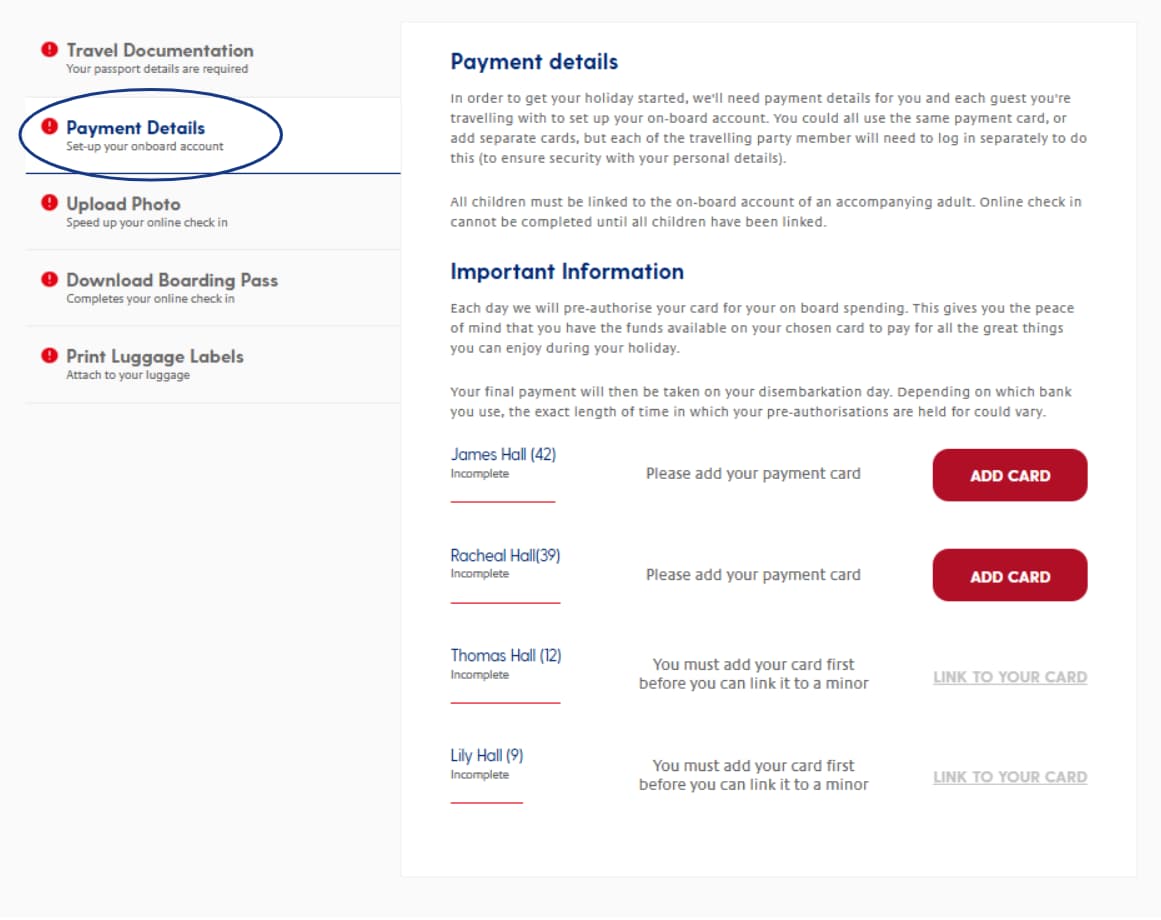
Click ‘Add card’ next to your name to add a payment card. See ‘What is an on-board account?’ for more information.
You’ll be taken to a form to enter your card details.

Once you’ve entered your details, click ‘submit card details’.
Please note: No funds will be taken from your payment card during this initial validation process.
After submitting, you’ll be asked to authenticate the transaction via online banking. If you can’t use online banking or you don’t have it, you can still verify your card directly at the terminal during check-in.
If you have more than one guest on the booking, a screen will appear (like the one below) at the end of the payment process when authenticating your card. You’ll be asked if you want to use the same payment card for everyone on the booking. Select the members of your party you're happy to have linked to this payment card.
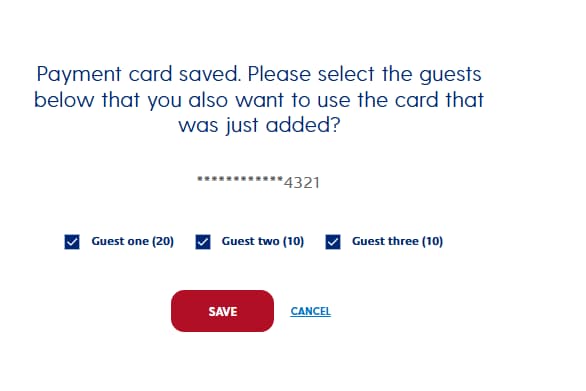
This will take you back to the check-in page, where you’ll see that your card details have now been saved.
Can I add a separate payment card for specific members of the same booking?
Yes, you can. To register a seperate payment card, a guest will need to log in as themselves and follow the steps previously outlined.
Please note: a guest is only able to add a payment card if they aren't already registered to another guest's payment card on the booking.
Can I add a payment card for children?
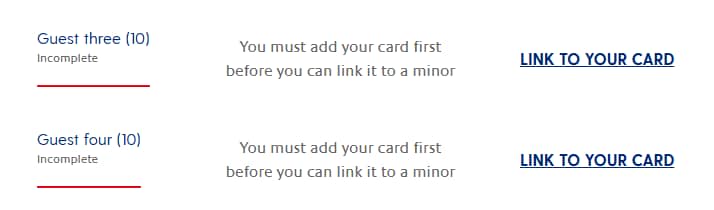
Yes, all children must have a payment card assigned to them. You can’t add a separate payment card; children must be linked to an adult’s payment card.
Once a card is added for the adults in the booking, you can link your card to each child in your booking. To do this, find the associated child's name in the ‘Payment detail’ section and click ‘Link to your card’.
Step four: upload a passenger photo
We advise that all guests upload a photo during online check-in at least 3 days before sailing.
Please note: if you are unable to upload your photo online, we can take one for you at the terminal during check-in.
How to upload your photo
On the online check-in page, click 'Upload photo' in the left-hand list of tasks to complete.
You’ll see your name and date of birth next to a space where your photo should be. Click on ‘Upload photo’ in the box.
When uploading your photo, check that it is in a portrait orientation, captures your whole head, and shows your entire face clearly.
.png)
You can upload a photo for another guest on your booking, but keep in mind that it wont be possible for you to edit or delete a photo once uploaded due to GDPR reasons. Once uploaded, only the guest in the photo has the ability to make changes. They can simply log in to their own My P&O Cruises account for editing.
Adults can upload and edit photos on behalf of children in their booking.
Step five: download your boarding pass
Once you’ve completed steps one to four, your boarding pass(es) will be ready to download.
Please note: you must download your boarding pass to complete the check-in process.
On the online check-in page, click ‘Download boarding pass’ in the left-hand list of tasks to complete. You can download multiple boarding passes for all checked-in guests. Click ‘Download’ next to the name of the guest whose boarding pass you wish to download.
.png)
The boarding pass(es) will be downloaded directly to your computer or mobile via your website browser in Portable Document Format (PDF). You’ll find them in the Downloads folder on your computer or mobile device.
Please note: boarding passes are usually available for download or printing approximately 21 days before your cruise holiday departure. Your arrival time and terminal for boarding will be assigned close to the sailing day. You can download your boarding passes now or when the time and the terminal have been assigned.
Struggling to download your boarding pass?
Remember to enable pop-ups on your browser. Try checking your device's or your browser's downloads folder. If you're still having trouble, please try again later or use a different internet browser.
Noticed something wrong on your boarding pass?
If you need to change the details on your boarding pass, please see our article ‘Can I make changes to my boarding pass?’
We recommend keeping a printed copy of your boarding pass as a backup, as well as a digital copy on your smartphone or tablet.
Can I arrive earlier than my arrival time?
Please arrive at the terminal at your set arrival time stated on your boarding pass. If you're travelling as a larger party and wish to board at the same time, please arrive at the terminal at the latest time provided.
Step six: print luggage labels
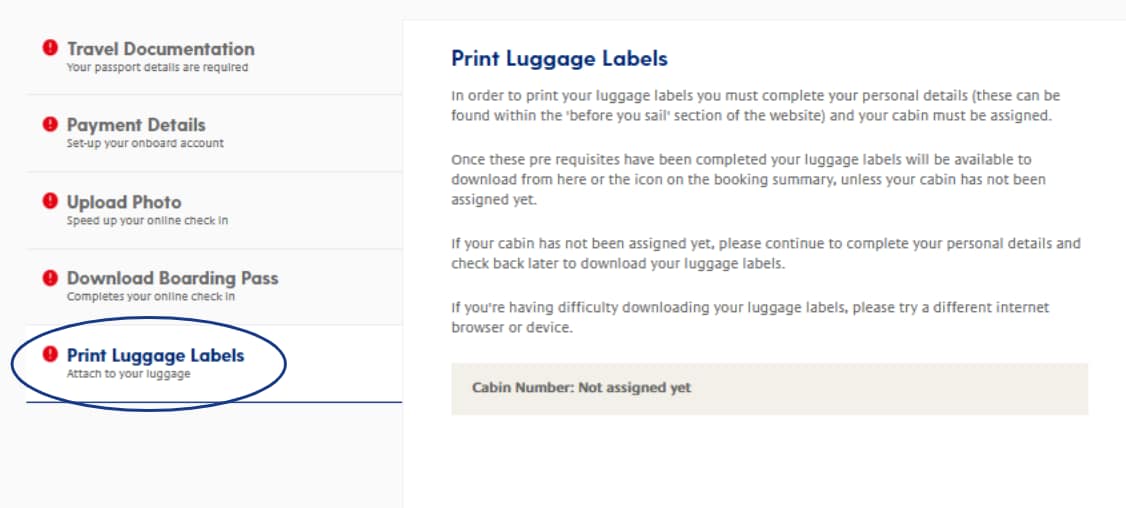
Luggage labels will be available to print when:
- you’ve completed your personal details, and
- your cabin has been assigned.
To complete your personal details, please click the ‘Complete personal details’ link when logging in to your My P&O Cruises account.
Please note: cabins can be assigned right up to the day of departure, although most are assigned at least two weeks before sailing. If this hasn’t happened on your booking, don’t worry; please arrive at the terminal as planned on the embarkation day.
On the online check-in page, click ‘Print luggage labels’ in the left-hand list of tasks to complete. Note, you are only able to do this once your cabin number has been assigned.
Your luggage labels will be downloaded directly to your computer or mobile via your website browser in Portable Document Format (PDF). You’ll find them in the Downloads folder on your computer or mobile device.
Struggling to download your luggage labels?
Remember to enable pop-ups on your browser. Try checking your device's or your browser's downloads folder. If you're still having trouble, please try again later or use a different internet browser.
In the event that you are unable to print your luggage labels yourself, we can print them for you at the terminal. Please note, this may involve a slightly longer waiting time during boarding.
Check-in complete
With all the steps complete, you can now relax knowing you are checked in for your P&O Cruises holiday.
Still need help?
Still have questions? Our friendly Customer Contact Centre is always happy to help! Contact us today on 0344 338 8003.
Was this post helpful?
Yes or No